


vSeeBox Products
-
2026 vSeeBox V6 Plus Box New BOX for Streaming Media Player 64GB 8K HD Voice Control
Regular price $279.00 USDRegular price$404.00 USDSale price $279.00 USDSale




Product Features
-

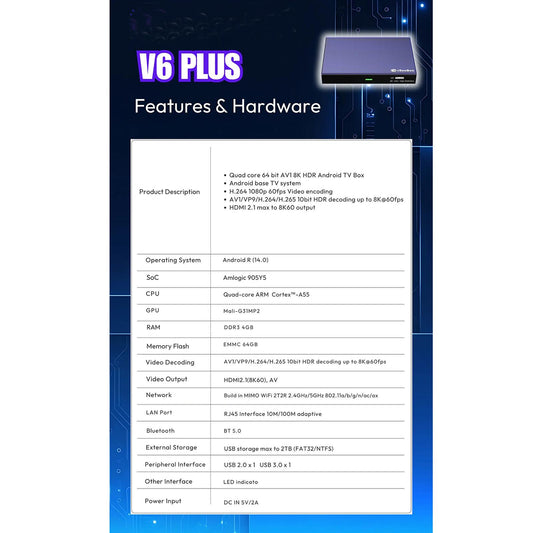
vSeebox V6 PLUS
Learn More- New: Android 14.0 TV System
- New: Split-Screen Multitasking Mode for Enhanced Productivity
- New: AI-Enhanced Backlit Voice Remote for Smarter Navigation
- New: Upgraded Cooling System for Greater Stability and Longevity
- Wi-Fi 6 Supported for Ultra-Fast Dual-Band Connectivity (2.4G/5G)
- Google Assistant Compatible for Effortless Voice Commands
- Upgraded: 64GB Internal Storage for More Apps and Media
- 4GB DDR4 RAM for Smooth and Responsive Multitasking
- 64GB eMMC Internal Storage for Enhanced App Capacity
- Supports 8K HDR Output with Advanced 8K Video Decoding
- Quad-Core ARM Cortex-A55 Processor for Faster, More Efficient Performance
-

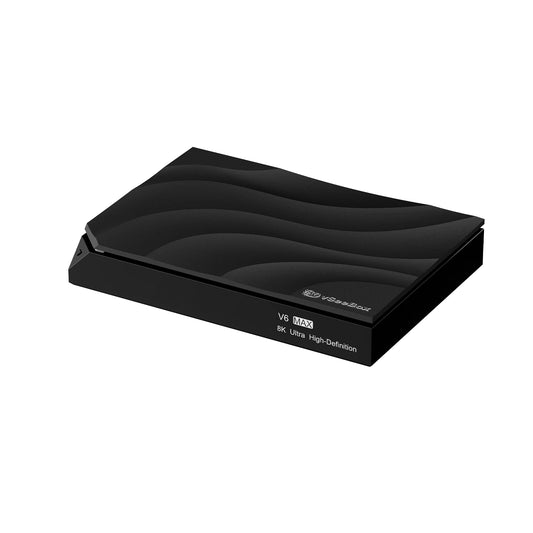
vSeebox V6 MAX
Learn More- New: Android 14.0 TV System
- New: AI-Enhanced Backlit Voice Remote for Smarter Navigation
- New: Dual Cooling System for Stable, Ultra-Performance Streaming
- New: Next-Gen Amlogic S928X Processor for Lightning-Fast Processing
- Wi-Fi 6 Supported (2.4G/5G Dual Band, Low Latency & High Stability)
- Dolby Vision & Dolby Atmos Supported for True Cinematic Sound and Visuals
- Upgraded: AV1 10-bit Video Decoding for Enhanced Clarity and Efficiency
- 4GB DDR4 RAM for Faster Response and Smooth Multitasking
- 64GB eMMC Internal Storage for More Apps and Seamless Playback
- Supports 8K HDR Output with Ultra-Clear Video Playback
- Advanced AI Optimization for Smoother Performance and Lower Power Consumption
The vSeeBox V6 Max is the ultimate 8K HDR Android TV Box — faster, smarter, and designed for cinematic brilliance with next-level voice control and Wi-Fi 6 speed.
-

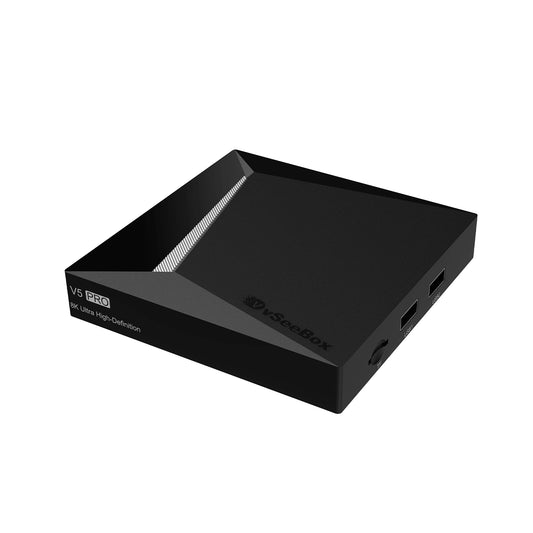
vSeebox V5 PRO
Learn More- New: Android 12.0 Operating System
- New: Advanced Bluetooth Voice Remote (Large Design)
- New: WiFi 6 Support for Faster and More Stable Connections
- New: Google Assistant Compatibility for Smart Voice Control
- Upgraded: Dual-Band WiFi RTL8822CS (2T2R) with 2 Transmitters and 2 Receivers
- Performance: 4GB DDR3 RAM & 32GB eMMC Internal Storage
- Powerful Processor: Quad-core ARM Cortex-A53
- Video Output: Supports 6K@60fps, 4K Ultra HDR, and 6K Video Decoding Output
-

vSeebox V3 PLUS
Learn More- New: Android 11.0 Operating System
- New: Advanced Bluetooth Voice Remote (Large Design)
- New: WiFi 6 Support for Faster and More Stable Connections
- New: Google Assistant Compatibility for Smart Voice Control
- Upgraded: Dual-Band WiFi RTL8822CS (2T2R) with 2 Transmitters and 2 Receivers
- Performance: 4GB DDR3 RAM & 32GB eMMC Internal Storage
- Powerful Processor: Quad-core ARM Cortex-A53
- Video Output: Supports 6K@60fps, 4K Ultra HDR, and 6K Video Decoding Output


